
Jobs & Careers · UK Guide 2026
Test Your Interview Setup With a Full Rehearsal
JASOTO · Updated 5 November 2026 · 1,650 words
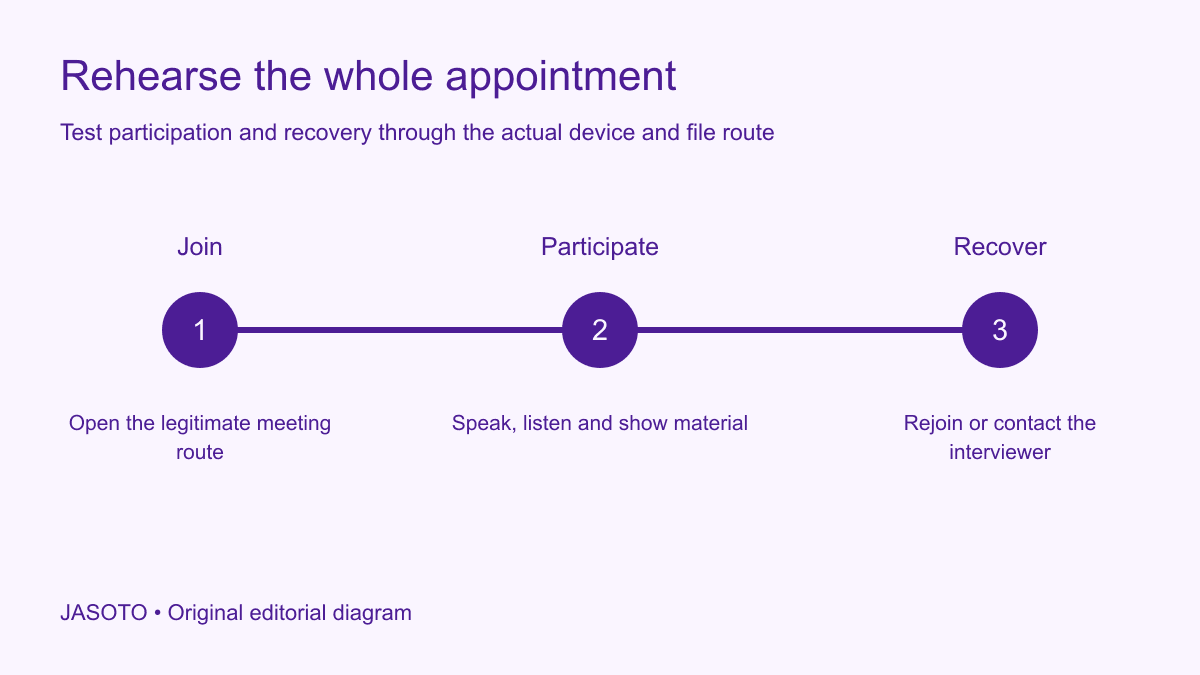
Original JASOTO editorial diagram. Its complete workflow is explained in the article; no actual customer outcome is depicted.
Test an online interview setup by rehearsing the whole appointment: open the invitation, join through the intended route, speak and listen, display any required material and practise recovering from a failed connection. A camera preview proves only a small part of readiness. The useful question is whether you can take part in the actual conversation using the device, room and account you plan to use.
This guide gives a practical rehearsal method for UK applicants. Zoom provides a test meeting for checking connection and device settings; use the equivalent official support for the platform named in your invitation. The full rehearsal below adds your actual files, contact route and physical arrangement. It helps reveal fixable problems before the interview, while the employer's invitation remains the source for joining details and assessment instructions.
The practical answer
- Test the whole appointment sequence.
- Use the actual device and required material.
- Get another person’s audio feedback.
- Practise a specific recovery route.
Write a short rehearsal route
Create a sequence that follows the real appointment from beginning to end. Include opening the invitation, locating the contact information, joining, checking audio, answering a sample question, opening the required file and ending the call. If a presentation is requested, include the screen-sharing step and the transition back to conversation. Keep the route short enough that you will actually perform it rather than merely read it.
Record what each step should establish. The audio check should demonstrate that another person can hear and understand you, while the file check should establish that you can locate the correct version without exposing unrelated material. This makes failures specific. Instead of concluding that the setup “feels unreliable”, you can identify that the headset changes output when a document opens or that the interview file is stored behind an account you cannot access on the intended device.
Use the actual device and location
Rehearse on the computer or phone you expect to use, with the same headset and ordinary room arrangement. Borrowing a different device for the test can conceal the problem you need to discover. Check the available power arrangement and the position that lets you use notes without losing the thread of the conversation. You do not need an elaborate studio; you need a workable place to listen, speak and handle the requested material.
Notice practical interruptions such as a door that will be used during the interview or a surface that moves when you type. Arrange what you reasonably can and prepare a brief response for an interruption you cannot fully control. Avoid expensive last-minute purchases before identifying the actual issue. A quieter microphone position or a simpler file route may address the problem more directly than buying a new accessory whose compatibility you have not tested.
Rehearse the joining process
Use the platform's official test route where available and check the invitation's stated requirements separately. Do not enter a live employer meeting early for a rehearsal unless invited to do so. Identify whether the interview uses a browser, application or another approved method, and confirm anything that remains unclear with the recruitment contact. A test meeting can check the platform without proving that a particular employer link is valid.
Locate the display-name setting where appropriate and use a name the interviewer can recognize. Check whether signing into an account is required by the invitation and whether your intended device can complete that step. Keep credentials private. If a security or access screen appears unexpectedly, pause and use the official support or recruitment route rather than following unfamiliar links found in a hurried search. The joining rehearsal should leave you knowing the next action at each screen you legitimately expect to encounter.
Have another person check sound and conversation
Ask a trusted helper to join a practice call through an appropriate arrangement. Speak at normal interview volume and have them ask a sample question. Check whether both sides can hear the whole exchange, including after you change applications or share a screen. A local microphone indicator can show activity without establishing that the other person hears clear speech.
Listen for the practical effect of the headset, room and connection rather than trying to achieve perfect production quality. Ask the helper to identify specific issues: words dropping out, a distracting echo or an unexpectedly quiet microphone. Change one relevant setting or arrangement at a time and retest that part. This makes it easier to know what helped and avoids introducing several untested changes shortly before the actual interview.
Practise the first answer and a clarification
Rehearse a concise opening answer and one ordinary example from your preparation. The purpose is to experience speaking through the actual setup, including looking at the screen, checking a note and returning to the question. You do not need to memorize the whole interview. A full technical rehearsal should still resemble a conversation with pauses and follow-up questions.
Ask the helper to use a question you did not expect or to request clarification. Practise saying that you need the question repeated if the sound drops or the wording is unclear. This is a useful recovery skill because a technical interruption can otherwise leave you answering only part of what was asked. Keep the response direct: identify what you heard, ask for the missing part and continue once the question is clear.
Open and share the exact required material
Place the approved file or portfolio route where you can find it quickly. Open it from the location you will use during the interview and test the relevant display or sharing step. Check that the text is readable in the shared view and that the correct version appears. A file that looks fine when opened directly may behave differently in a browser preview or meeting window.
Close unrelated applications and review what could appear on screen during navigation. Use only material you are permitted to show. Rehearse stopping sharing before moving to private notes or another window. If the panel will open a supplied link independently, test the intended access through a suitable recipient view rather than assuming it works because you are the owner. Record unresolved access issues and ask the appropriate contact before the appointment.
Simulate one failure and a calm restart
Choose a realistic low-impact failure to practise, such as leaving the test call and rejoining through the same legitimate route. Tell the helper what you are doing so the exercise does not create confusion. Find the invitation again, reconnect and state briefly what happened. Check that you can recover the conversation without spending several minutes searching through unrelated messages.
Prepare a contact message outside the meeting platform. It should identify you, the appointment and the immediate problem, then ask for or state the next agreed step. For example, “I have lost the call connection and am trying to rejoin using the invitation. Please contact me through this email if you would prefer another arrangement.” Use the employer's actual contact instructions where given. Do not assume an alternative phone number or platform is authorized without confirming it.
Build an offline prompt sheet
Keep the interview time, relevant time zone, contact route and essential joining reference accessible if your main application fails. Add a few notes you need for the conversation, such as the names of your selected examples and questions. Avoid filling the sheet with a complete script that becomes difficult to scan. The sheet's job is to support recovery and orientation under ordinary interview pressure.
Keep private access information out of any material you might share on screen. If you print the sheet, check that it contains the latest appointment details. If it is stored on the device, confirm where it is and whether you can open it without losing the call. A fallback that depends entirely on the same unavailable account as the meeting may not help when that account is the source of the problem.
Fix observed failures before adding enhancements
Sort the rehearsal findings by their effect on participation. Inability to hear the interviewer matters before decorative background choices. A broken required file matters before a more elaborate slide transition. Make a change, retest the affected step and keep a record of what remains unresolved. Avoid restarting the whole setup repeatedly after every minor adjustment when the dependent parts are already working and unchanged.
For technical assistance found through business providers, describe the exact symptom and confirm the support scope. Keep the recruitment contact informed if the interview arrangement remains inaccessible despite reasonable preparation. If an in-person alternative is offered, confirm the venue and time before planning travel. When comparing further job opportunities, retain the useful rehearsal routine so each application does not require rebuilding the same setup knowledge from scratch.
Finish with a stable final check
Once the important steps work, keep the setup stable where practicable and make a concise final check before the real appointment. Confirm the current invitation, device power, sound route and required material. A platform update or changed invitation may justify retesting the affected step. There is little benefit in repeatedly redesigning a working arrangement without a specific reason, especially if the new change cannot be rehearsed.
If a last-minute enhancement introduces trouble, return to the tested arrangement and use the simple fallback you prepared. After the interview, note the actual issue and improve the routine for next time without inferring the outcome from a technical incident. A full rehearsal is complete when you can join, take part, use the requested material and explain a recovery step. That gives you a concrete basis for readiness and a manageable route when the real appointment differs from the practice.
Put the guide into practice
- Write a short rehearsal script.
- Test joining, audio and sharing.
- Save an offline contact prompt.
- Keep the final working setup stable.
Frequently asked questions
Is a platform test call enough?
It is a useful first check, but add the device, room, files and joining sequence you will actually use. Where possible, have another person confirm that they hear you clearly. A successful platform test does not validate the employer’s specific invitation or every step of a presentation.
Should I record the rehearsal?
Only do so with an appropriate arrangement and the other participant’s agreement. A live helper’s specific feedback may be enough. Keep any recording private, avoid including sensitive material and remove it when it is no longer needed through your normal file-management arrangements.
What if the employer changes the platform at short notice?
Read the new instructions, check the official requirements and test the affected joining and device steps. Contact the recruiter if you cannot use the proposed arrangement. Preserve the confirmed fallback contact instead of assuming your earlier test proves readiness for a different service.
Explore JASOTO tools
Discover providers and check support for your specific task.
Explore roles and responsibilities →Consider the practical responsibilities involved when recruiting or joining a team.
Plan work-related travel →Research a journey when joining, training or meeting colleagues in person.
Continue with JASOTO
Compare your next step
Discover UK businesses, compare services and request written quotes before making a decision.