






















Global Business · India Guide 2026
Local SEO in India: Neighbourhoods and Verified Locations
JASOTO · Updated October 4, 2026 · 420 words

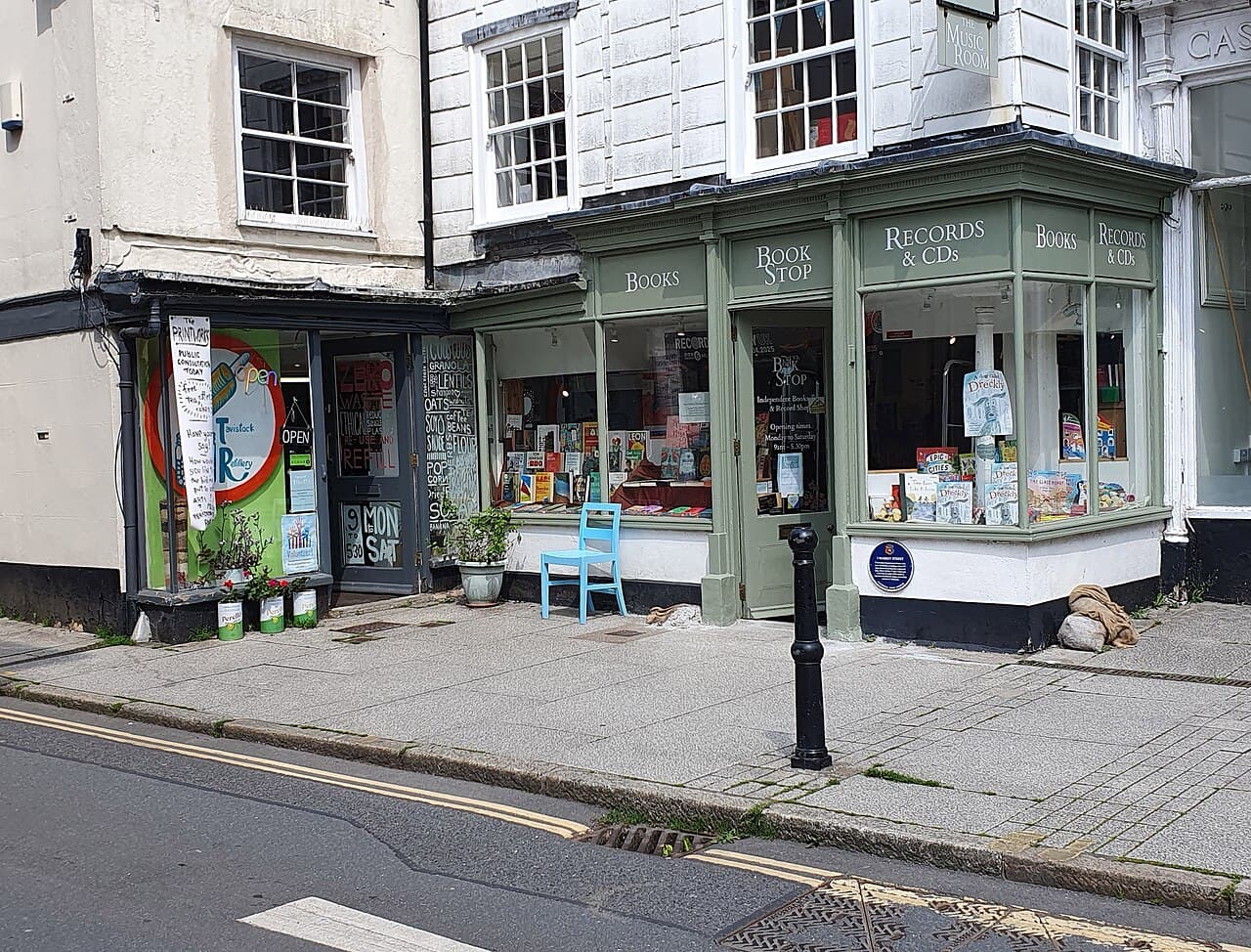
Photo: Jonathan Borba / Pexels. Stock photograph for illustration; no JASOTO customer, listing, tested product or endorsement is implied.
A local page for an Indian business should help someone identify the right premises or find out whether the team serves their neighbourhood. A city name may leave travel, delivery and address details unresolved. Describe the real operation, give a current contact route and check the listing against staff arrangements before publishing more locality pages or claiming a wider service boundary.
Practical next steps
- Define neighbourhood coverage.
- Check real premises and profile eligibility.
- Verify address and landmark directions.
Explain neighbourhood coverage before expanding pages
Name the neighbourhoods or localities normally served and explain which requests need an individual travel or delivery check. Distinguish coverage within a city from attendance across its surrounding area. A state or national heading should not imply the same availability everywhere, and extra place names should not replace a clear explanation of the work the team accepts.
Verify premises and profile eligibility
Google’s business representation guidance sets out eligibility and location requirements for Business Profiles. Check the real customer-facing operation before publishing a branch address. A mailing address or a locality the business wants to reach does not establish a staffed office. Keep the identity and service model consistent across the profile and website.
Source: Google: business representation and eligibility. Check the source for current guidance and terms.
Give directions that match the actual visit
Where customers visit or collect something, verify the building, floor or shop information and any useful landmark instructions. Include address details such as the PIN code when appropriate for the real destination. Keep directions current, and use genuine permitted premises photographs rather than an illustrative image that implies it shows the actual entrance.
State contact languages and acceptance steps
Explain which phone, form or messaging route the team monitors and the languages available through each route. Do not assume Hindi, English or every regional language is supported because a generated translation exists. Tell visitors what staff need to confirm coverage and timing, keeping an inquiry receipt distinct from an accepted appointment or dispatch.
Correct repeated locality misunderstandings
Ask staff whether customers repeatedly contact the wrong branch, misunderstand the attendance area or struggle to find the premises. Improve the relevant instructions before adding another locality page. Use real project evidence only within its verified scope, and compare accepted work with requests outside coverage rather than promising more customers or higher rankings from additional pages.
Checks for the actual business
- Define neighbourhood coverage.
- Check real premises and profile eligibility.
- Verify address and landmark directions.
- State supported languages and acceptance steps.
Frequently asked questions
Does a city heading imply service everywhere nearby?
Explain the actual attendance or delivery boundary and when staff assess a request individually.
Can a translated page imply language support?
Describe only the language arrangements the team can actually handle.
Explore JASOTO tools
Check the actual business information
Compare public details with the service and contact arrangements your team supports.
Browse business services